PM Kisan Face RD App Not Opening? Fix Face e-KYC Issues for 2026

Why is the Aadhaar Face RD App Not Opening or Working for PM Kisan e-KYC?
If you’re wondering, “Why is my aadhaar face rd app is not opening?” you’re not alone. The Aadhaar Face RD app is a “headless” service, meaning it does not have a launchable icon on your phone’s home screen. It only activates automatically when you click “Scan Face” inside the official PM-KISAN GoI mobile application. If it fails to trigger, or if your camera isn’t launching, you likely have a permission or installation issue. Ensure you have granted “Camera” and “Location” permissions to both apps in your phone settings.
While the Face Authentication feature in the PM-Kisan app is a revolutionary step to simplify e-KYC for millions of farmers, many still encounter technical glitches. Since the Aadhaar Face RD App is a “headless” application (it has no icon and runs in the background), it can be tricky to troubleshoot. This guide will help you resolve the most frequent errors reported in 2026, including issues where the Aadhaar Face RD app is not opening or the camera is failing.
These solutions are crucial not just for PM-Kisan, but also for other state-specific schemes like the नमो शेतकरी योजना हप्ता 2026 in Maharashtra, where Face e-KYC might be required for MahaDBT benefit releases.
1. Error: “Aadhaar Face RD App Not Found” or “Please Install Face RD”
The Issue: You have downloaded the app from the Play Store, but the PM-Kisan app still asks you to install it, or the aadhaar face rd app is not opening at all.
- The Fix:
- The Face RD app does not have an icon on your home screen. It is a background service.
- Ensure you have installed both the “PM-KISAN GoI” app and the “AadhaarFaceRD” app by UIDAI from the Google Play Store.
- Action: Go to your phone’s Settings > Apps > AadhaarFaceRD and ensure it is not “Disabled” or “Deep Sleeping.” Some phone manufacturers might automatically put unused apps into a sleep state.
- Device Compatibility: Ensure your Android device is running Android 7.0 (Nougat) or higher for optimal performance of both apps.
2. Error: “Face Not Detected” or “Liveness Detection Failed”
The Issue: The camera opens, but the app fails to capture your face or asks you to “Try again,” often preventing the aadhaar face rd app from completing its task.
- The Fix:
- Lighting: Stand in a brightly lit room but avoid direct sunlight or bright lights directly behind you (backlighting), which can cast shadows or overexpose your face. Natural, soft light from the front is ideal.
- Steady Posture: Keep the phone at eye level, about 12-18 inches away from your face. Hold it steady and do not tilt your head excessively.
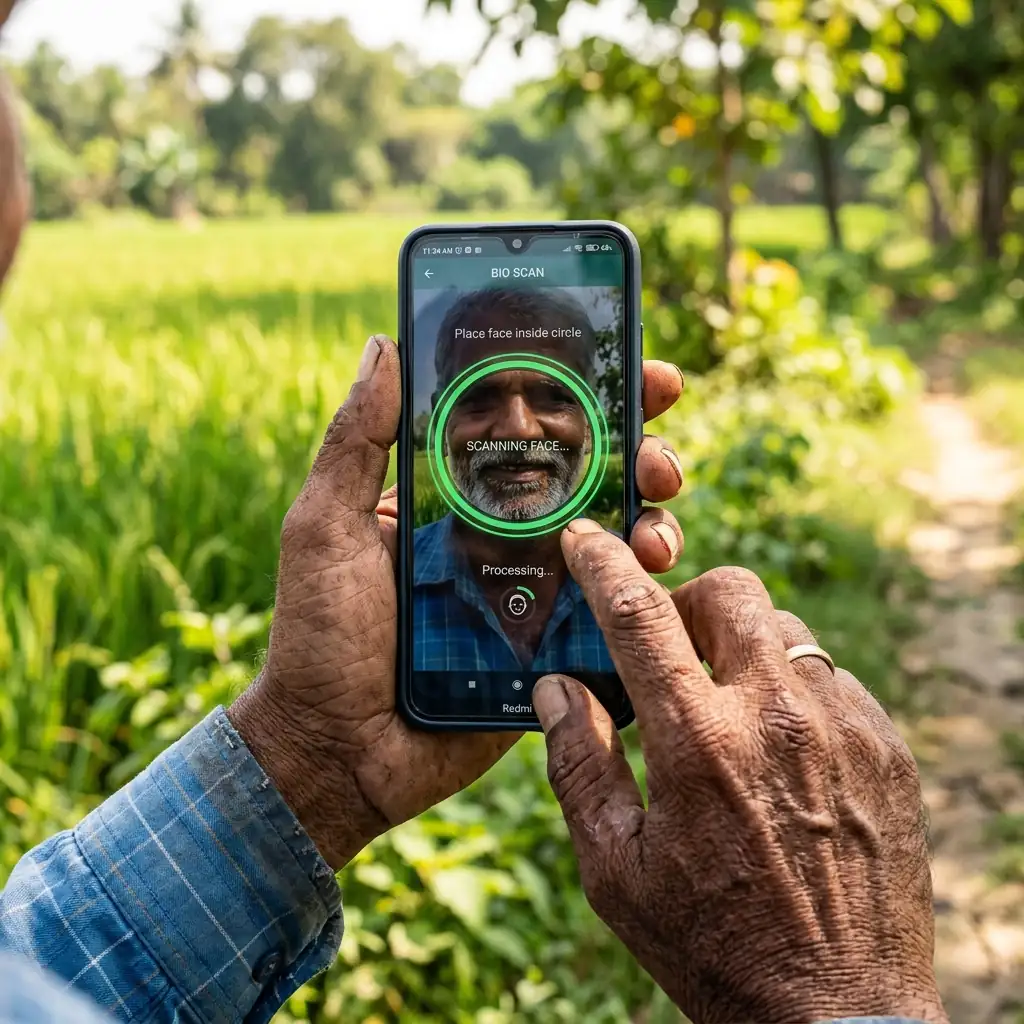
- The “Blink” Trick: When the facial recognition frame turns green on your screen, blink your eyes clearly and slowly. This action is crucial for the AI to confirm you are a live person and not a photograph.
- Clean the Lens: A smudge or dirt on your front camera lens is the #1 cause of “Blurry Image” or “Face Not Detected” errors. Clean it with a soft cloth.
- Remove Obstructions: Take off glasses, hats, or masks that might obscure your face.
3. Error: “Camera Permission Denied” or Camera Fails to Launch
The Issue: The app closes immediately when you click on ‘Scan Face’ or the camera simply shows a black screen, indicating the aadhaar face rd app cannot access your camera.
- The Fix:
- Go to Settings > Apps > PM-Kisan / AadhaarFaceRD > Permissions on your phone.
- Select Camera and ensure it is set to “Allow only while using the app” or “Allow.”
- Also, ensure Location permission is granted (“Allow all the time” or “Allow while using the app”), as the app verifies your geographical state during the e-KYC process.
- Restart Device: After changing permissions, restart your phone to ensure changes are applied effectively.
4. Technical Error Codes (1001, 1006, or “Server Busy”)
The Issue: High traffic on the PM-Kisan servers as the March 13, 2026 deadline for e-KYC approaches, causing connectivity issues.
- The Fix:
- Clear Cache: Go to Settings > Apps > PM-Kisan > Storage > Clear Cache. Do this for the AadhaarFaceRD app as well.
- Time it Right: Try performing the eKYC during “off-peak” hours—early morning (before 8 AM) or late at night (after 10 PM IST) when server load is lower.
- Internet Connection: Ensure you have a stable and fast internet connection. Switch from Wi-Fi to Mobile Data (or vice versa) to see if it resolves network-related errors.
Summary Table for Quick Troubleshooting
| Common Problem | Quick Solution |
| Aadhaar Face RD App Icon Missing / Not Opening | It’s a background service; don’t look for an icon. Ensure both PM-Kisan and AadhaarFaceRD apps are installed and active in settings. |
| Liveness Detection Failed / Face Not Detected | Blink your eyes clearly when the green frame appears. Improve lighting (front-lit). |
| Black Screen / Camera Permission Denied | Enable Camera & Location permissions in Phone Settings for both PM-Kisan & AadhaarFaceRD. |
| Network Error / Server Busy | Clear app cache. Try during off-peak hours. Switch internet connection. |
| Record Not Found / Aadhaar Mismatch | Double-check your Aadhaar number for typos. Ensure the registered mobile number is linked to Aadhaar. |
Final Expert Tips for 2026 e-KYC Success
If your face authentication fails more than 5 times, do not keep retrying immediately, as your Aadhaar ID might get temporarily locked for 24 hours. Instead, consider these options:
- Visit a CSC: Visit a nearby Common Service Centre (CSC) or Jan Seva Kendra to complete a biometric (fingerprint or iris) eKYC. This is often the fastest and most reliable alternative.
- Check PM Kisan Status: Once e-KYC is done, regularly check your PM Kisan Status Check to ensure your beneficiary status is active and you don’t miss the upcoming 22nd installment.
The Top 3 Fixes for March 2026:
“Out of Location” Error: Turn on GPS/Location and ensure the PM-Kisan app has “Allow all the time” or “Allow only while using the app” location access. This is vital if your aadhaar face rd app is not opening due to location checks.
“App Not Found” Error: Do not look for an icon. Check Settings > Apps to confirm AadhaarFaceRD is installed and not disabled.
“Liveness Detection Failed”: Ensure you are in a brightly lit room with light on your face and blink slowly and deliberately when the frame turns green.